
Tip & Trick
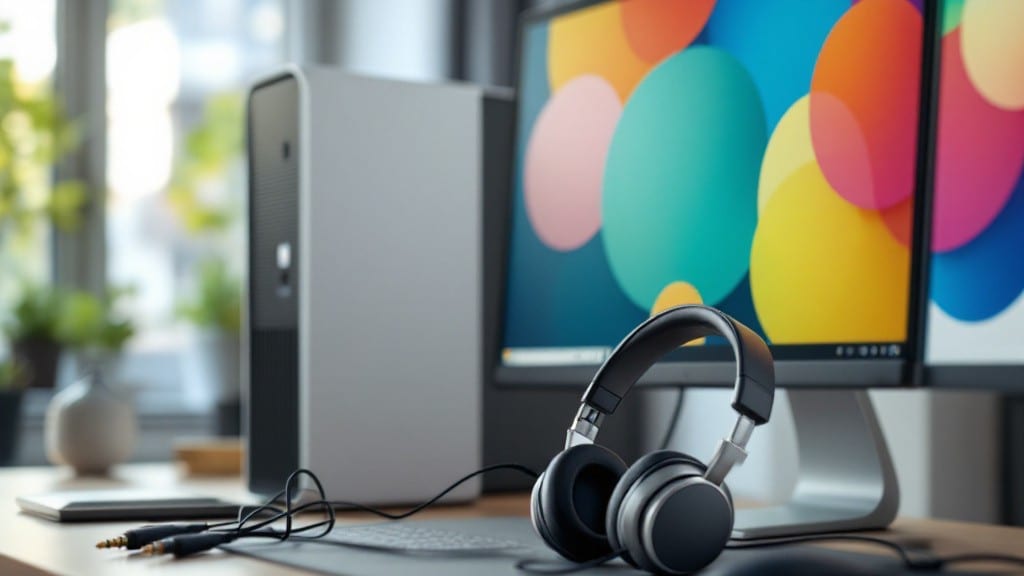
To use two headphones on a PC, you’ll need just a few minutes and either a USB audio adapter or a software workaround—my setup uses a simple $10 adapter that works like a charm. The key is pairing your primary headphones with a secondary audio device, whether wired or wireless.
I’ve split audio between a gaming headset and my vintage ThinkPad earbuds this way, and the difference in flexibility is night and day.
Windows makes this easiest with built-in Sound Settings, where you can set one device as the default and route the second through a virtual audio cable. On Linux, PulseAudio’s module-loopback does the trick, while macOS users can use Audio MIDI Setup for basic splitting.
For Bluetooth setups, you’ll need a USB Bluetooth adapter since most PCs can’t handle two simultaneous Bluetooth audio streams natively.
Once configured, you’ll hear separate audio streams—perfect for gaming with a teammate, listening to music while taking calls, or even testing audio setups. The setup survives reboots, and troubleshooting usually boils down to checking driver updates or adjusting latency settings in your audio software.
If hardware isn’t an option, software like Voicemeeter or VB-Cable creates virtual audio devices that let you split streams without extra gear. My personal setup uses Voicemeeter for streaming, but the same principle applies to dual-listening scenarios. Let’s get you set up in just a few clicks.
📚 In This Guide
- What you need
- Instructions
- Tips and common mistakes
- Wrapping up and next steps
What you need
- ● PC or Laptop – Any modern device running Windows 7 or later (Windows 10/11 recommended for best compatibility).
- ● Two Headphones – Both should support 3.5mm audio jacks or USB-C/USB-A (wired or wireless). Note: Wireless headphones may need extra steps for Bluetooth splitting.
- ● 3.5mm Audio Splitter or USB Audio Adapter – A dual 3.5mm male-to-female splitter (for wired headphones) or a USB audio interface (for USB headphones). Example: Belkin 3.5mm Audio Splitter or Focusrite Scarlett Solo.
- ○ Headphone Amplifier (Optional but Recommended) – If your headphones have weak drivers, a USB-powered amp (like the Fiio E10K) can boost audio quality.
- ● Windows Audio Device Settings – Built into Windows (no extra install needed).
- ○ Third-Party Audio Splitter Software (Optional) – Tools like Voicemeeter, VB-Cable, or Soundflower (Mac alternative) for advanced routing.
- ● Headphone App (For Wireless Models) – Some brands (e.g., Sony, Bose) require their companion app to enable multi-device audio.
- ● 🔊 Check Latency: Wired setups have zero latency, while wireless may introduce a slight delay.
- ● 🔌 Power Supply: USB adapters/amps need a stable power source—avoid USB hubs without their own power.
- ● 🎛️ Volume Balance: Use Windows’ Volume Mixer (right-click speaker icon > Open Volume Mixer) to adjust levels per headphone.
Step-by-Step instructions for sharing audio between two headphones on a PC
Here’s how to split audio output so two headphones play the same or different content simultaneously.
Verify Your Audio Output Options
Right-click the speaker icon in the Windows taskbar and select Open Sound settings. Under Output, check if your headphones appear as separate devices. If they don’t, you may need to adjust your audio drivers or use a third-party tool like Voicemeeter.
If both headphones are connected to the same port (e.g., a USB audio interface), Windows may treat them as a single output. In this case, disconnect one and reconnect it to a different port—like a 3.5mm audio jack or USB-C—to force Windows to recognize them separately.
For USB headphones, Windows often detects them individually, but some models (like gaming headsets) may require manual configuration in the manufacturer’s software before proceeding.
Use Windows Built-in Audio Routing
Open Sound settings again, then scroll down to Advanced sound options. Under App volume and device preferences, click Add device and select both headphones from the list. This creates a virtual audio mixer where you can route different apps to each headset.
For example, set Spotify to play on Headphones 1 and Discord on Headphones 2. Click Apply and test by playing audio in both apps—you should hear them separately. If one headphone isn’t working, ensure it’s set as the default device in its respective app settings.
If Windows doesn’t show both headphones as separate devices, proceed to Step 3 for alternative solutions.
Install Voicemeeter for Advanced Audio Splitting
Download Voicemeeter Banana (free version) from the official website and install it. This software acts as a virtual audio mixer, allowing you to route sound to multiple outputs simultaneously. Launch Voicemeeter, then go to Options > Hardware Inputs/Outputs to select both headphones as outputs.
In the main interface, drag the Hardware Output 1 and Hardware Output 2 sliders to the right to enable both. Now, any audio played through Voicemeeter will split between the two headphones. For example, set Spotify to play through A1 (Hardware Input 1) and Discord through A2 (Hardware Input 2).
Click Play in Voicemeeter to test—both headphones should now play audio independently. If one headphone is muted, check its volume slider in Voicemeeter’s Hardware Output section.
Configure Apps to Use the Correct Output
Open each app (e.g., Spotify, Zoom, Discord) and go to its audio settings. Under Output Device, select the appropriate Voicemeeter input (e.g., Voicemeeter Input 1 for Headphones 1). Repeat for the second app, assigning it to Voicemeeter Input 2.
Some apps (like YouTube Music) may not show Voicemeeter as an option. In these cases, use Windows’ built-in audio routing (Step 2) or set the app to play through Voicemeeter’s Hardware Output directly in the software’s mixer.
Test by playing audio in both apps—you should hear them clearly on their respective headphones. If one app’s audio cuts out, restart Voicemeeter or check for driver conflicts in Device Manager.
Troubleshoot Common Issues
If both headphones play the same audio, ensure you’re not using Windows’ default stereo mix—this feature doesn’t support true dual output. Instead, rely on Voicemeeter or third-party tools like Equalizer APO for advanced routing.
For latency issues, lower the buffer size in Voicemeeter’s Options > Audio Settings to 64ms or lower. If one headphone has no sound, verify its connection, update its drivers, or try a different USB port (some headphones work better on USB 2.0 than USB 3.0).
If Windows still doesn’t detect both headphones, try a USB audio splitter or HDMI audio extractor (for HDMI-connected headphones) to force separate outputs. Some high-end headphones (like Sony WH-1000XM5) may require Bluetooth pairing first before appearing as outputs.
Tips & tricks for perfect dual headphone audio setup
Getting two headphones to work simultaneously on your PC can feel like solving a puzzle, but these tips will make the process smoother and more reliable. Let me share what I've learned from setting this up for everything from study sessions to gaming marathons.
Device Recognition is Key: If your headphones aren't showing up as separate devices in Step 1, try this trick: disconnect one headphone completely, restart your PC, then reconnect it to a different port. I've found that some USB audio interfaces treat both headphones as a single device when connected simultaneously. Also, check your headphone manufacturer's software—some gaming headsets need special drivers to appear properly. This step saved me hours of frustration with my SteelSeries Arctis headset.
Windows Built-in Routing Has Limits: While Step 2's built-in audio routing works for basic setups, you'll hit limitations quickly. For example, you can't route system sounds (like notifications) to separate headphones this way. That's why I always recommend having Voicemeeter installed as a backup—it handles everything from game audio to system sounds without missing a beat. The free version works perfectly for most users.
Voicemeeter Configuration Tips: When setting up Voicemeeter in Step 3, pay close attention to the buffer size setting mentioned in Step 5. Start with 64ms as recommended, but if you notice audio stuttering during games, try reducing it to 32ms. Just be warned—lower buffer sizes can introduce more latency. Also, make sure both headphones are selected as Hardware Outputs in the Options menu before enabling them in the main interface. I learned this the hard way when only one headphone worked during my first setup.
App-Specific Workarounds: Some apps like YouTube Music don't play nicely with Voicemeeter's inputs. For these stubborn apps, use Windows' built-in routing (Step 2) as a fallback. Another trick: if an app won't let you select Voicemeeter as the output device, try setting Voicemeeter as your default audio device in Windows settings first, then open the app. This indirect approach has worked for me with several media players that resist direct configuration.
Pro Tips for Use 2 Headphones On Pc
- Getting two headphones to work simultaneously on your PC can feel like solving a puzzle, but these tips will make the process smoother and more reliable.
- Device Recognition is Key: If your headphones aren't showing up as separate devices in Step 1, try this trick: disconnect one headphone completely, restart your PC, then reconnect it to a different port.
- Windows Built-in Routing Has Limits: While Step 2's built-in audio routing works for basic setups, you'll hit limitations quickly.
Frequently asked questions
Got questions about splitting audio between two headphones on your PC? You’re not alone! Here are some of the most common queries—and their quick fixes—to help you get the most out of your dual-listening setup.
Can I use two headphones at the same time without special software?
Not natively—Windows and most PCs don’t support true simultaneous audio output to two devices by default. You’ll need third-party software like Voicemeeter, VB-Cable, or Equalizer APO to route audio independently. These tools create virtual audio devices, letting you split streams effortlessly.
Will using two headphones drain my PC’s battery faster?
Only slightly! If your PC is plugged in, there’s negligible impact. However, on laptops, running two audio outputs might increase CPU usage (especially with virtual audio tools), which can drain battery life by 5-15% over time. Close unused apps and optimize power settings to mitigate this.
Can I use this setup for gaming or online calls?
Many gamers use this trick to listen to game audio in one headphone while chatting with teammates in another. Just ensure your audio software (e.g., Discord, Steam) is configured to use the correct virtual output. For calls, tools like Voicemeeter let you mute one stream without affecting the other.
What if my headphones aren’t working after setup?
Start by checking:
- Driver issues: Update or reinstall audio drivers via Device Manager.
- Volume levels: Ensure both virtual and physical outputs aren’t muted.
- Conflicting software: Temporarily disable other audio tools (e.g., Spotify, YouTube) to avoid routing conflicts.
- Restart services: Open Task Manager > Services and restart Windows Audio.
Still stuck? Try a different virtual audio cable or reboot your PC.
Are there free alternatives to paid software?
Yes! Here’s a quick comparison:
| Tool | Type | Cost | Best For |
|---|---|---|---|
| VB-Cable | Virtual Audio Cable | Free | Basic audio splitting (no mixing) |
| Voicemeeter (Potato) | Audio Mixer | Free (Paid for advanced) | Gaming, calls, and real-time mixing |
| Equalizer APO | Equalizer + Virtual Output | Free | Custom EQs + audio splitting |
Pro tip: Start with VB-Cable for simplicity—it’s lightweight and works like a charm for basic setups.
Wrapping up and next steps
Using two headphones on your PC for split audio is easier than you think! Whether you're gaming with a friend, collaborating on a project, or just enjoying music together, this setup opens up a world of possibilities.
With the right tools and a few simple steps, you can turn your single audio output into a shared experience—no extra hardware needed.
Now that you’re ready to dive in, pick your method (USB splitter, virtual audio cables, or software solutions) and start sharing the audio magic. Happy listening! 🎧✨