
Troubleshooting

IT support teams waste countless hours resolving repetitive issues. These 10 knowledge base articles cover the most common tech problems—from password resets to printer failures—with step-by-step fixes that save time and frustration for both agents and end-users.
How to Reset a Forgotten Windows Password Without Admin Access
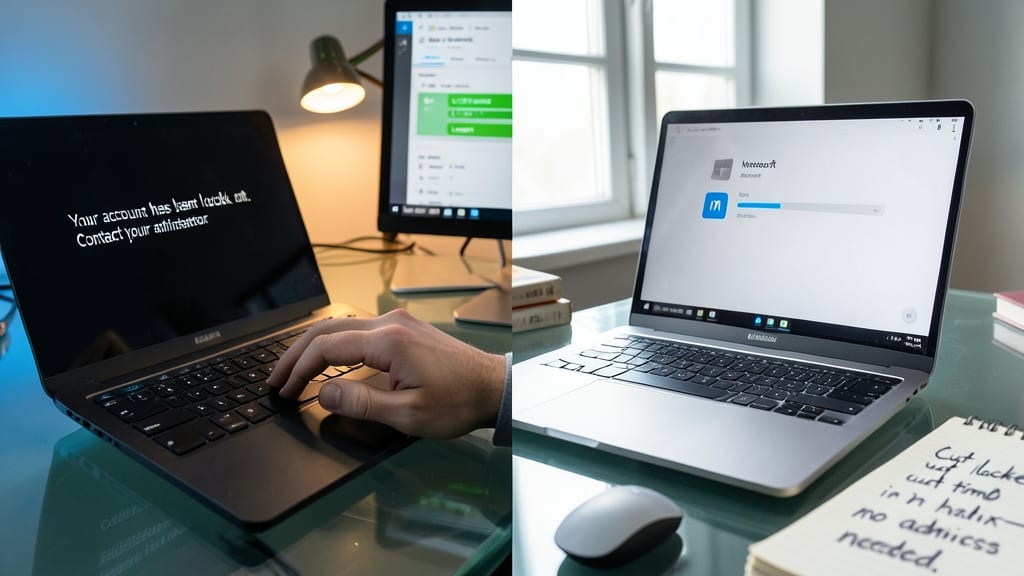
Remote support teams lose an average of 20 minutes per locked-out user—but this guide cuts that time in half with zero admin access required. Whether dealing with a local Windows account or a Microsoft account, these methods ensure you can reset passwords without escalating tickets to IT.
For Windows 10/11 local accounts, use the built-in Command Prompt (via Safe Mode) with the command net user [username] [newpassword]. Microsoft accounts require accessing the password reset portal via another device or using the Microsoft Authenticator app for verification. Pro tip: Document these steps in your knowledge base with screenshots of the login screen bypass (Ctrl+Alt+Del > "Reset Password").
Remote support agents and helpdesk teams will love this battle-tested setup. ✨
Troubleshooting Printer Connection Errors in Office Environments
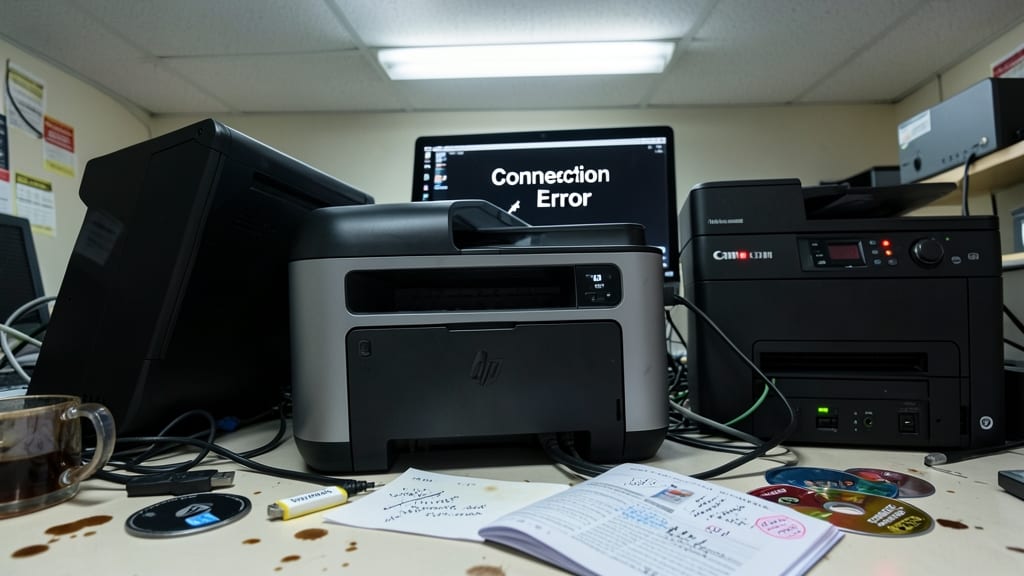
Shared office printers are the silent productivity killers—until they stop working. When HP, Canon, or Epson models throw "connection error" messages, small businesses lose hours waiting for IT to diagnose IP conflicts, outdated drivers, or misconfigured network settings.
Start with driver updates: Use the manufacturer’s Print and Scan Doctor tool (HP) or Epson Software Updater to auto-fix compatibility issues. Next, check for IP conflicts—assign a static IP to the printer via your router’s DHCP reservation list. For Wi-Fi printers, reset the connection by holding the Wi-Fi button for 10 seconds and re-scanning networks. Pro tip: Ping the printer’s IP from a command prompt to verify connectivity.
This guide is your lifeline for offices with shared printers—whether it’s a single workgroup or a multi-floor setup. Save time by bookmarking these steps for your next support call. 💻
Fixing Outlook Email Sync Issues Across Devices

Remote workers relying on Outlook for email, calendars, and tasks know the frustration of sync issues—emails stuck in drafts, missing appointments, or duplicate entries. These problems often stem from IMAP/SMTP misconfigurations, corrupted cached mode data, or profile conflicts between devices.
Start by disabling cached mode in Outlook settings (File > Account Settings > Change > More Settings), then switch to online-only mode to rule out local corruption. For IMAP/SMTP conflicts, verify server settings (e.g., imap.office365.com for Outlook 365) and test connectivity using Telnet (telnet smtp.office365.com 587). If the profile is damaged, repair it via Control Panel > Mail > Show Profiles > Properties > Repair (Windows) or Outlook > Preferences > Accounts > Advanced > Rebuild (Mac).
This fix is a lifesaver for remote teams and freelancers juggling multiple devices. A quick profile repair or sync reset often resolves sync nightmares in minutes. ✨
Resolving Slow Internet Speeds on Corporate Networks

When corporate Wi-Fi feels slower than dial-up, it’s rarely a single culprit—it’s usually a mix of bandwidth hogs, VPN bottlenecks, and ISP throttling. Network admins need a systematic way to isolate the problem before diving into fixes, and this guide delivers exactly that.
Start with Ookla Speedtest Enterprise to benchmark speeds across devices, then use Wireshark to identify suspicious traffic patterns (like rogue downloads or malware). For VPN slowdowns, test with OpenVPN’s --mssfix flag to adjust MTU sizes, and check if your ISP is throttling bandwidth during peak hours—tools like GlassWire reveal real-time usage spikes. Finally, optimize your router by enabling QoS (Quality of Service) to prioritize critical traffic.
This approach is perfect for MSPs, IT departments, and remote work setups where every millisecond counts. A well-tuned network keeps employees productive and avoids the dreaded "it’s fine on my phone" excuses. 💻
Recovering Deleted Files from Windows Recycle Bin
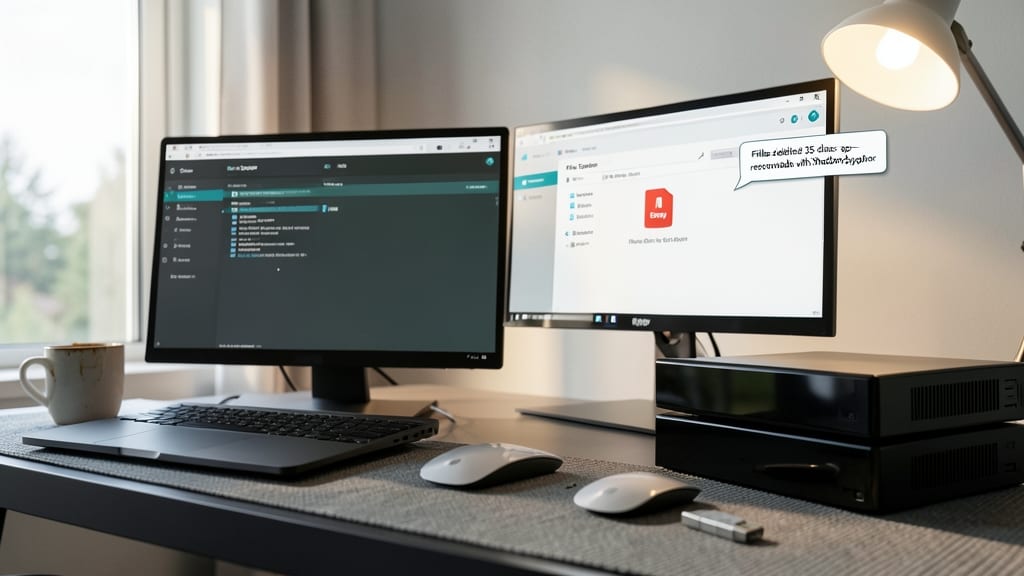
Accidental file deletions happen to everyone—but panic isn’t your only option. With ShadowExplorer, a free tool that bypasses Windows’ 30-day Recycle Bin limit, you can recover files even after they’ve been permanently deleted or lost due to system crashes. No technical degree required.
For basic recovery, right-click the Recycle Bin and select Restore—but when that fails, ShadowExplorer’s volume shadow copy feature scans deleted files across all versions of your drive. It also handles NTFS permission errors, a common stumbling block for helpdesk agents. The tool’s lightweight design means zero performance hit, and it works on Windows 7 through 11.
Ideal for helpdesk agents who need to recover user files quickly, or end-users who’ve hit the "delete" button one too many times. Just download, select the deleted file’s folder, and click Recover. ⚡
Configuring VPN Access for Remote Employees
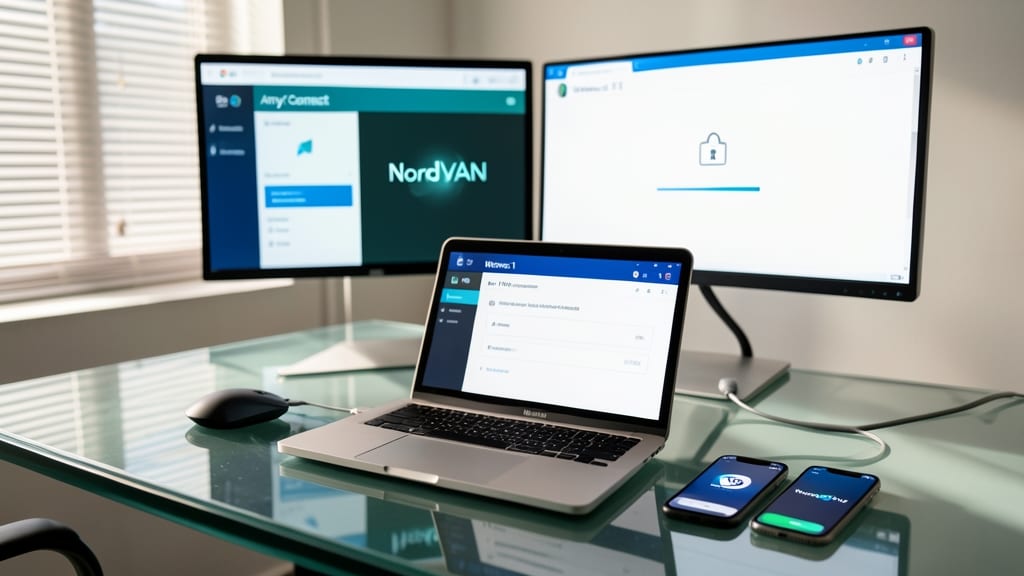
Remote work relies on secure connections, but VPN setup can feel like navigating a maze. This guide simplifies configuring Cisco AnyConnect, NordVPN, and built-in client tools across Windows, macOS, and mobile—ensuring seamless, encrypted access for your team.
Start with Cisco AnyConnect (enterprise-grade) by downloading the client from your IT portal, then input the VPN server address and group credentials. For NordVPN, the OpenVPN protocol offers the best balance of speed and security—just select a server location and connect. Mobile users get zero-config setup via the NordVPN app or built-in iOS/Android VPN profiles (.ovpn files). Always verify with a speed test post-connection to confirm performance.
This setup is ideal for IT admins managing hybrid teams or employees working from coffee shops, co-working spaces, or home offices. A battle-tested VPN setup keeps data secure while keeping workflows running smoothly. ✨
Diagnosing Blue Screen Errors in Windows 10/11

When a Blue Screen of Death (BSOD) strikes, IT pros need more than guesswork—you need a structured approach to decode the error codes and root causes. The IRQLNOTLESSOREQUAL error, for example, often points to faulty drivers or corrupted memory, while PAGEFAULTINNONPAGEDAREA suggests hardware or driver conflicts.
Start by checking Event Viewer (Windows Logs > System) for detailed crash logs, then use Windows Memory Diagnostic to test RAM issues. For drivers, leverage Driver Verifier to isolate problematic modules, and always update drivers via Windows Update or manufacturer sites. Tools like BlueScreenView from NirSoft can parse crash dumps instantly, saving hours of manual analysis.
This guide is perfect for helpdesk technicians and sysadmins who handle Windows environments daily—turning panic-inducing BSODs into quick, actionable fixes. ⚡
Setting Up Dual Monitors for Productivity in Office
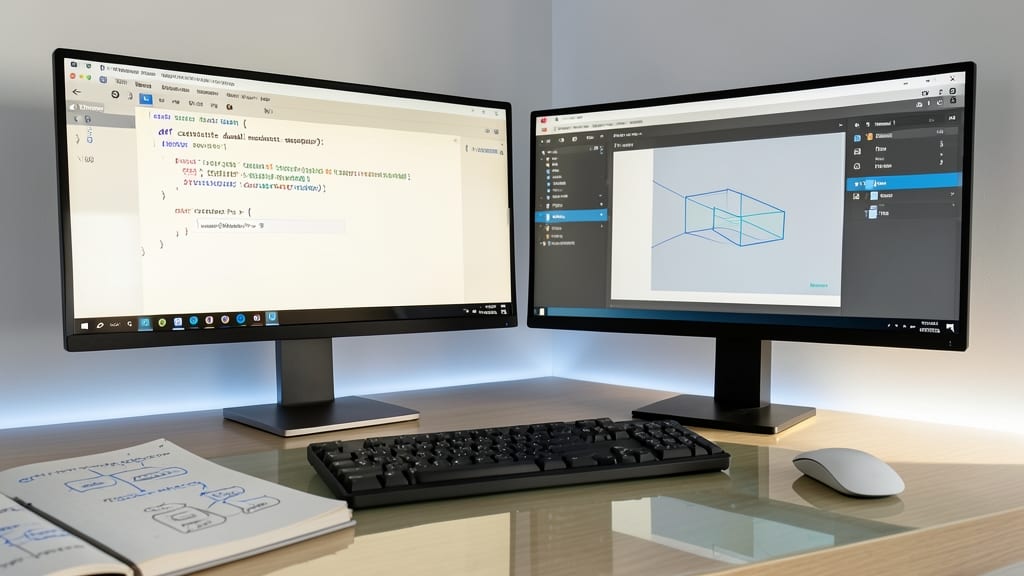
If your single monitor feels like a bottleneck for coding marathons or design sprints, a dual-monitor setup can transform your workflow—but only if configured correctly. Windows and macOS handle multi-display setups differently, and small tweaks like display scaling or mirroring vs. extending can make or break your productivity.
On Windows, right-click your desktop → Display settings to enable extended mode (independent screens) or mirroring (duplicate). For macOS, use System Preferences → Displays and adjust resolution to match (e.g., 1920x1080 for consistency). Pro tip: Use 125% scaling on one screen for code (sharp text) and 100% on the other for design (color accuracy). Ergonomics matter too—position monitors at eye level and 20-30 inches away to avoid strain.
Developers and designers will love this setup for side-by-side debugging or wireframing, while IT support teams can use it to demonstrate fixes live. Just remember: USB-C adapters (like those for 4K@60Hz) require extra power—plug them into a USB 3.0 hub if needed. ✨
Resolving Microsoft Office Activation Errors
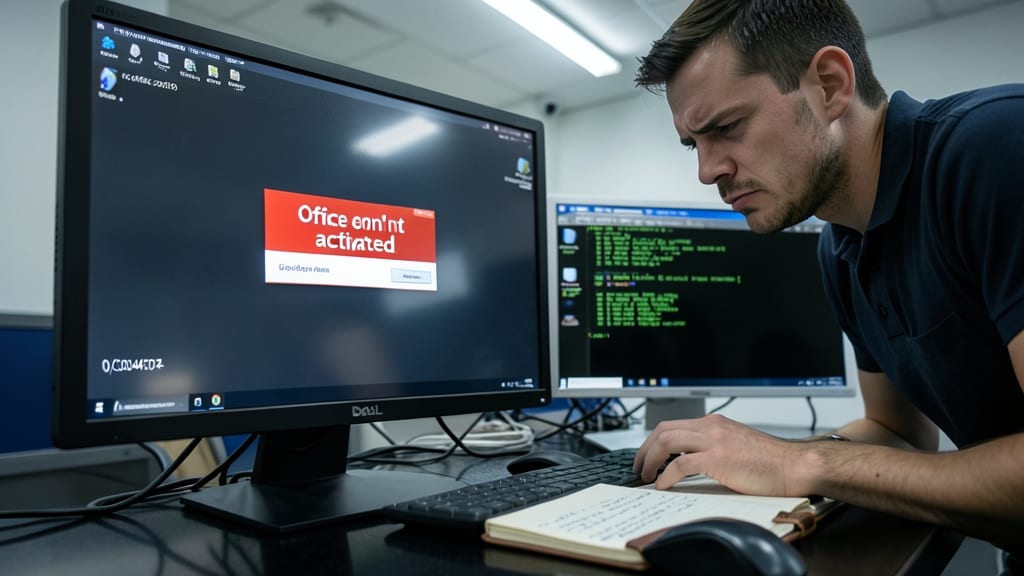
Frustrated users staring at "Office isn’t activated" errors in Word, Excel, or PowerPoint can derail productivity—but these fixes cover all activation scenarios, from KMS (Key Management Service) to volume licenses and retail keys.
For KMS errors, use the Office Deployment Tool (ODT) to reset configurations with setup.exe /configure config.xml (replace with your license server details). Retail keys? Try the Microsoft Activation Troubleshooter or manually re-enter the key via File > Account > Change product key. Need to migrate a product key between machines? The Office Uninstall Tool cleans old licenses before reinstalling with a new key—no reinstallation required.
This guide is a lifesaver for IT admins managing enterprise deployments or small businesses stuck on activation loops. Save time by bookmarking these three-step fixes for your next support call. 💪
Securing Linux Servers Against Common Vulnerabilities

Linux servers power critical infrastructure, but misconfigurations leave them vulnerable to brute-force attacks, outdated software, and unauthorized access. Sysadmins need a zero-trust approach to lock down SSH, enforce firewall rules, and automate security updates—without sacrificing usability.
Start by hardening SSH with key-based authentication (disable password logins in /etc/ssh/sshd_config) and rate-limiting tools like fail2ban to block repeated login attempts. For firewalls, UFW (Uncomplicated Firewall) simplifies rules with commands like sudo ufw allow 22/tcp for SSH, while iptables offers granular control for advanced setups. Automate patching on Ubuntu with Unattended Upgrades (enable via /etc/apt/apt.conf.d/50unattended-upgrades) or dnf-automatic on CentOS to apply security fixes without manual intervention.
This guide is a sysadmin’s must-have for securing production servers—whether you manage a single VM or a rack of cloud instances. Implement these steps to sleep easier knowing your Linux servers are battle-tested against the most common threats. 💪