
Tip & Trick
Struggling to find files in your Microsoft ecosystem? Mastering file naming conventions transforms chaos into a searchable, shareable system. These best practices ensure seamless organization across Windows, OneDrive, and Office applications.
Date-based prefix format for projects

Frustrated by files that vanish into alphabetical chaos? A YYYYMMDD prefix (like 20240515ProjectDraft.docx) instantly sorts your projects chronologically—no extra tools needed. Microsoft’s built-in sorting recognizes this format, so your files appear in perfect date order in File Explorer, SharePoint, and OneDrive.
This system works because Windows treats numbers as sequential values, not text. You’ll never miss a deadline again—just glance at the filename to see when it was created. The 8-digit date ensures global compatibility, while underscores () separate it from the rest of the name for clarity.
Perfect for freelancers, project managers, or anyone juggling multiple deadlines. Once you try it, you’ll wonder how you ever lived without this battle-tested setup. ⚡
Department-code suffix system
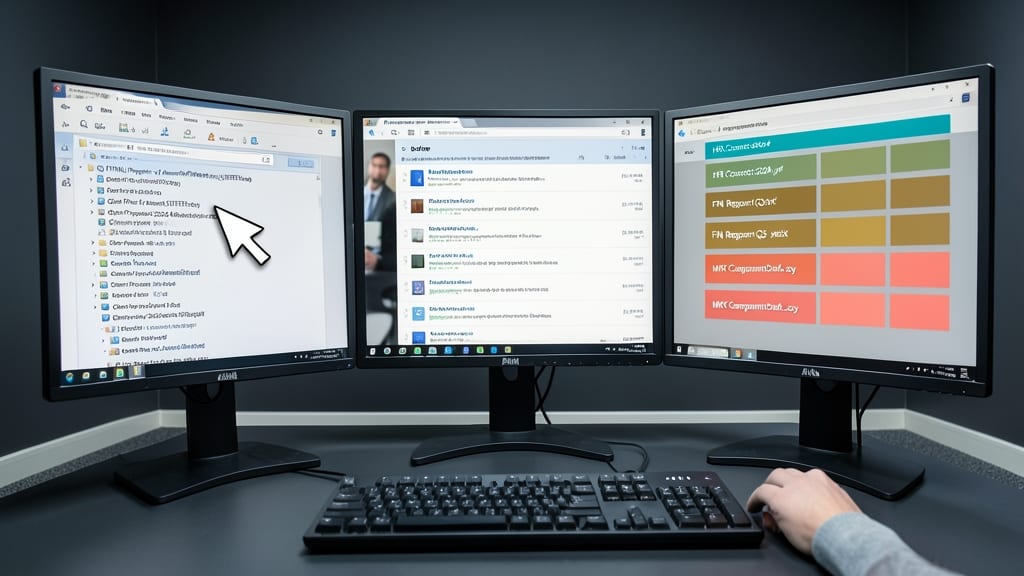
Tired of digging through shared drives to find the right file? The Department-Code Suffix System turns chaos into instant organization by appending 3-letter codes (like HRContract or FINReport) to every filename. This simple tweak syncs seamlessly with SharePoint metadata and Outlook folder structures, so your team’s files stay logically grouped—no more guessing where that invoice belongs.
Here’s how it works: Use a consistent format like DEPTFileTypeDescription (e.g., MKTInvoiceQ22024.pdf). This structure lets you filter by department in SharePoint libraries or Outlook’s search function, while also aligning with Microsoft’s built-in sorting. For example, a FIN_2024Budget.xlsx file will auto-group with other finance files—no manual folder moves required.
Perfect for teams managing shared drives or collaborating across departments. It’s the zero-config way to keep files organized without overhauling your entire workflow. ✨
PowerPoint presentation naming rules
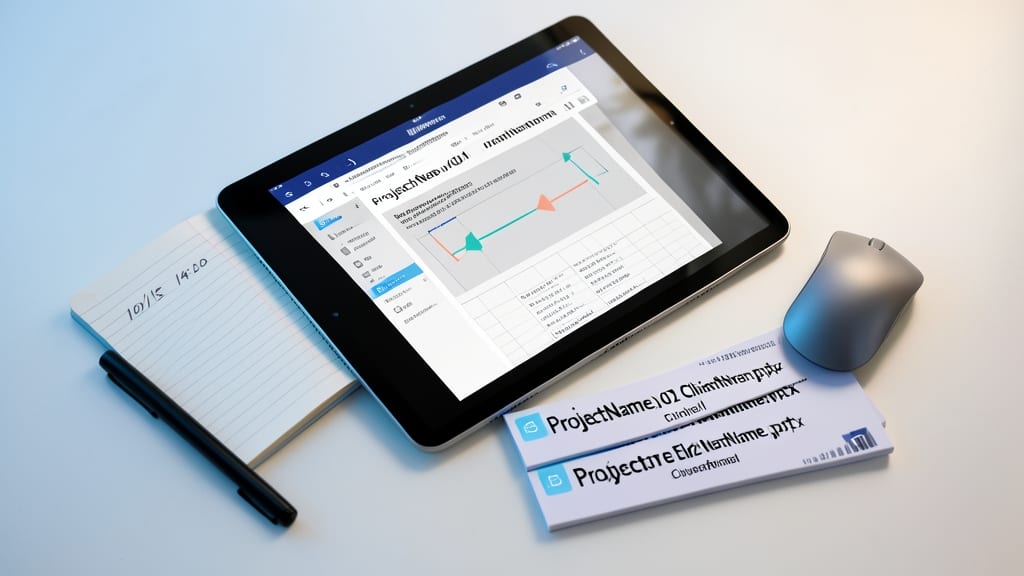
Tired of losing track of PowerPoint revisions mid-project? A structured naming system like ProjectNamev01ClientName.pptx keeps your files organized while preventing overwrites during co-authoring sessions.
This format works seamlessly with Microsoft 365’s auto-save and real-time collaboration features, ensuring version numbers increment automatically (v01 → v02) without manual intervention. The underscore-separated structure also plays nice with Windows Search and OneDrive’s conflict resolution, making it ideal for shared drives. Plus, client names in the filename eliminate confusion when multiple stakeholders request updates.
Perfect for agencies, consultants, and teams managing client presentations—where clarity and version control are non-negotiable. ✨
Excel workbook version control
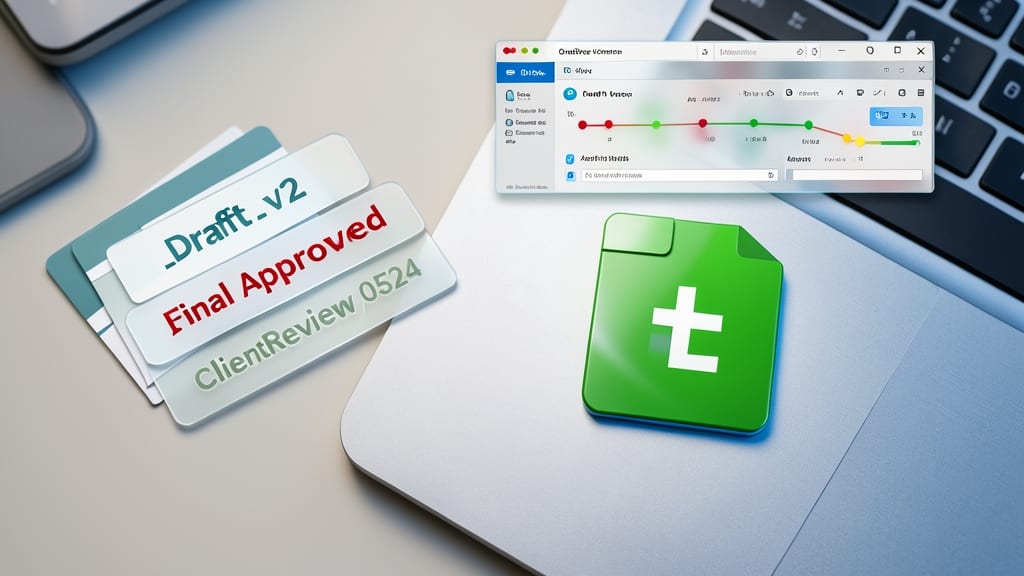
Ever sent a client the wrong Excel version by accident? A simple naming tweak can save you from costly mistakes. By appending 'Final', 'Draft', or 'ClientReview' to your filenames, you create an instant audit trail that works with OneDrive's built-in version history.
OneDrive automatically tracks changes when you save files with these suffixes, letting you recover previous versions in seconds. The version history feature becomes your safety net—just right-click any file to see every iteration, from 'Draftv2' to 'Final_Approved'. This method also works seamlessly with Excel's built-in co-authoring for real-time collaboration.
Perfect for accountants, analysts, or anyone sharing financial data—where accuracy matters most. 💻
OneDrive sync-friendly filenames
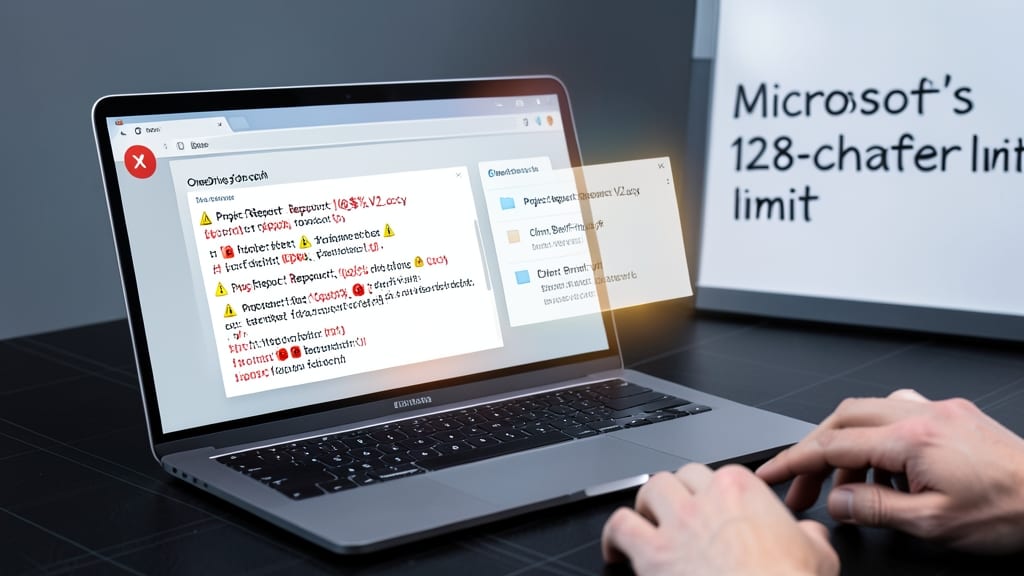
Tired of OneDrive sync errors ruining your workflow? The secret lies in clean, conflict-free filenames—Microsoft’s sync system rewards simplicity with reliability.
Stick to alphanumeric characters and basic symbols (like underscores or hyphens) while avoiding !@#$%^&*(). Keep filenames under 128 characters to prevent truncation issues, and OneDrive’s built-in automatic conflict resolution will handle duplicates seamlessly. This ensures your files sync without corruption or lost revisions.
Perfect for remote teams or solo users relying on OneDrive—these rules future-proof your files against sync headaches. ✨
Windows search optimization
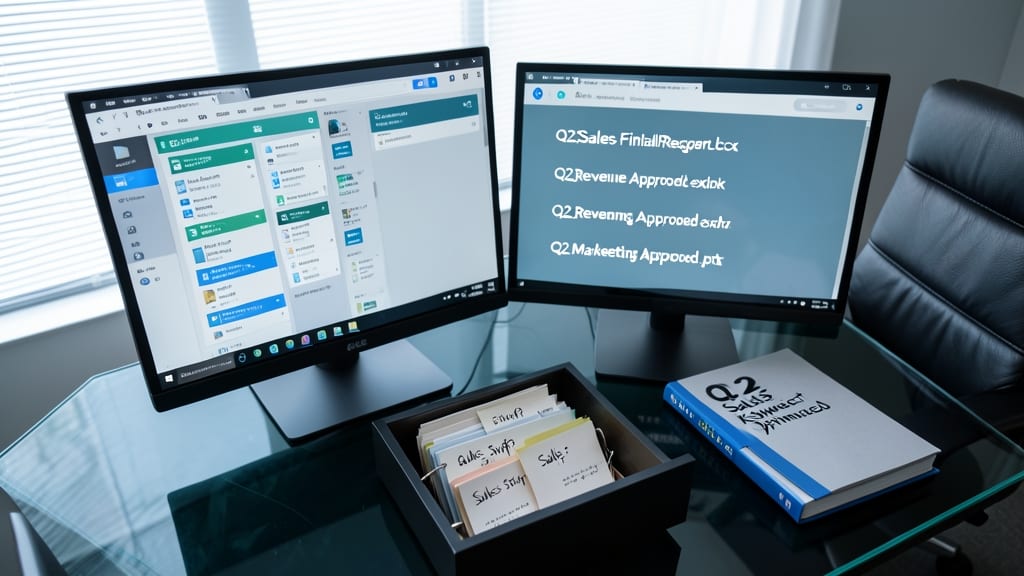
Tired of digging through folders to find that one file? Windows Search and Cortana rely heavily on how you name your files—proper keywords make all the difference. Instead of "Q2 Sales Report (Final).docx," try "Q2SalesFinalReport.docx" to boost search accuracy instantly.
Windows Search prioritizes underscores over spaces and ignores repeated characters (like "ReportReport"), so stick to clear, concise keywords like "ClientNameProject2024." This ensures your files appear in search results faster, even across OneDrive and SharePoint. Avoid special characters too—they break indexing entirely.
Perfect for busy professionals juggling projects or teams sharing files. With this tweak, you’ll spend less time searching and more time working. ✨
PDF and image naming standards

Frustrated when PDFs or images appear jumbled in Adobe Acrobat or Microsoft Edge? A structured naming convention ensures instant recognition—no more guessing whether "ClientDoc2024.pdf" is a contract or invoice.
Use the DocumentTypeDescriptionYYYY format (e.g., ContractSmithAgreement2024.pdf) for universal compatibility. This structure works flawlessly across both Adobe Acrobat’s metadata tools and Microsoft Edge’s file preview pane, while keeping files chronologically sorted. For images, append YYYYMMDD (e.g., LogoRedesign20240515.png) to avoid version confusion.
This system is a lifesaver for legal teams, designers, and anyone sharing files across platforms. ⚡